


Firebase Phone OTP Checkout — Mandatory Mobile Verification for WooCommerce
Original price was: ₹2,000.00.₹499.00Current price is: ₹499.00.
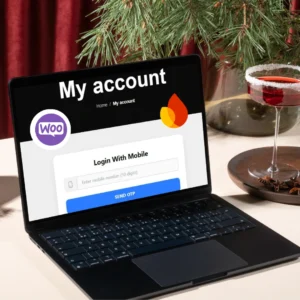
Add mandatory, per-checkout phone OTP verification to WooCommerce using Firebase Phone Auth. Users must verify their mobile number every time they open the checkout page. Verified numbers are used to create (or attach to) a WordPress customer account and saved to the order meta.
Part A — Create Firebase project and enable Phone Auth (step by step)
-
Go to https://console.firebase.google.com and sign in with a Google account.
-
Click “Add project” → give it a name (e.g., “MyShop-OTP”) → click through and create the project. (You can disable Google Analytics if you want.)
-
In the project console, open Build → Authentication → click “Get Started”.
-
In the Sign-in method tab find Phone and click it → Enable → Save.
-
Optionally, configure reCAPTCHA settings (Firebase uses reCAPTCHA internally for web phone sign-in). You generally do not need to supply your own site key — Firebase does the invisible reCAPTCHA via the JS SDK.
-
-
Still in Authentication → Sign-in method, add your site domain under Authorized domains (top of the Sign-in method page). Example:
example.comandwww.example.com. Also addlocalhostif you test locally. -
(Optional but recommended for testing) Under Authentication → Sign-in method → Phone you can add Test phone numbers. These allow you to verify OTP flows without sending real SMS. Add a test number and a matching test code (e.g., +91 9999999999 -> 123456). This helps during development so Firebase returns immediately.
-
Create a Web App in Firebase (so you can get the config object):
-
Go to the project Overview (the gear icon) → click Add app → choose Web (</> icon).
-
Enter an app nickname (e.g.,
checkout-web) and click Register app. -
Firebase will show your Firebase config object — looks like:
-
Copy that entire object — you will paste it into the WordPress code (replace placeholder config already present in the code).
-
-
Make sure the Authorized domains includes your site and
localhost(for dev). If you forget this, Firebase signInWithPhoneNumber will fail with a domain error.
Notes:
-
For production SMS, Firebase will send real SMS and charges may apply depending on your usage and country limits. For initial development and testing, use test phone numbers to avoid real SMS costs.
-
reCAPTCHA/invisible reCAPTCHA requires HTTPS in production. If you test on HTTP (non-localhost), you may get warnings or failures.
How to install the code into WordPress (step by step)
Install free plugin for insert the code Download free plugin
Go to WordPress and click Snippets. Then click the Import option at the top, upload the purchased code, and turn on the toggle button.
Replace Firebase config in code
Inside the inline JS in the code you will find the firebaseConfig = { ... } object. Replace that entire object with the web app config you copied from Firebase console (Part A step 7). Example:
Important: this is safe to include client side — the API key in Firebase config is meant to be public for client usage. But still protect your Firebase project rules on the server side if you use other services.
Test the flow (development checklist)
-
Open a fresh incognito window (so no cookies or sessionStorage).
-
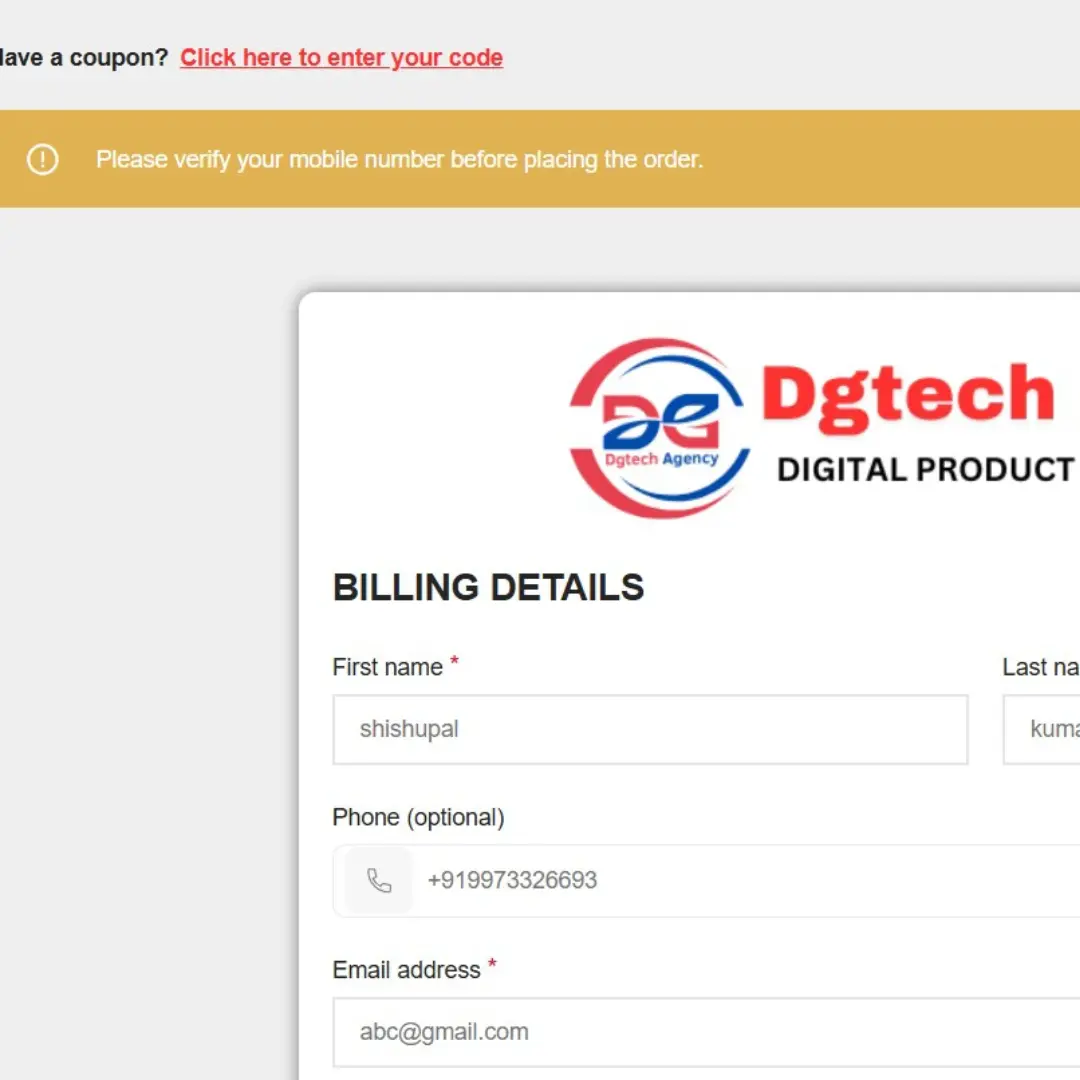
Go to WooCommerce checkout page. You should see billing phone field with a “Send OTP” button.
-
Enter a phone (for quick dev, use a Firebase test phone configured earlier). Example test phone
+919999999999and test OTP123456if you set them. -
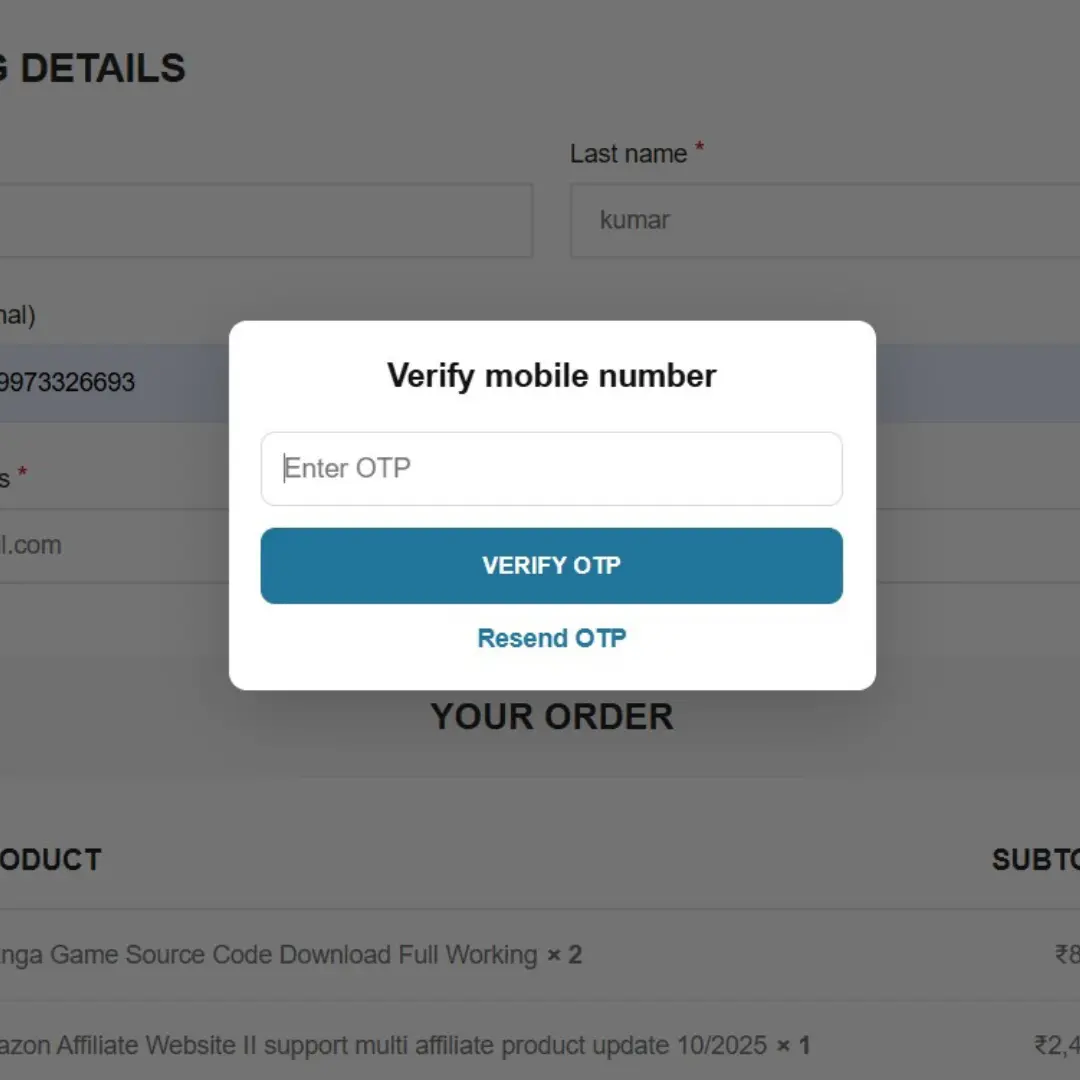
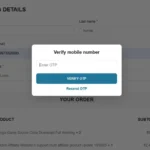
Click Send OTP — the invisible reCAPTCHA will run and Firebase will return a confirmation result. The popup shows “Enter OTP”.
-
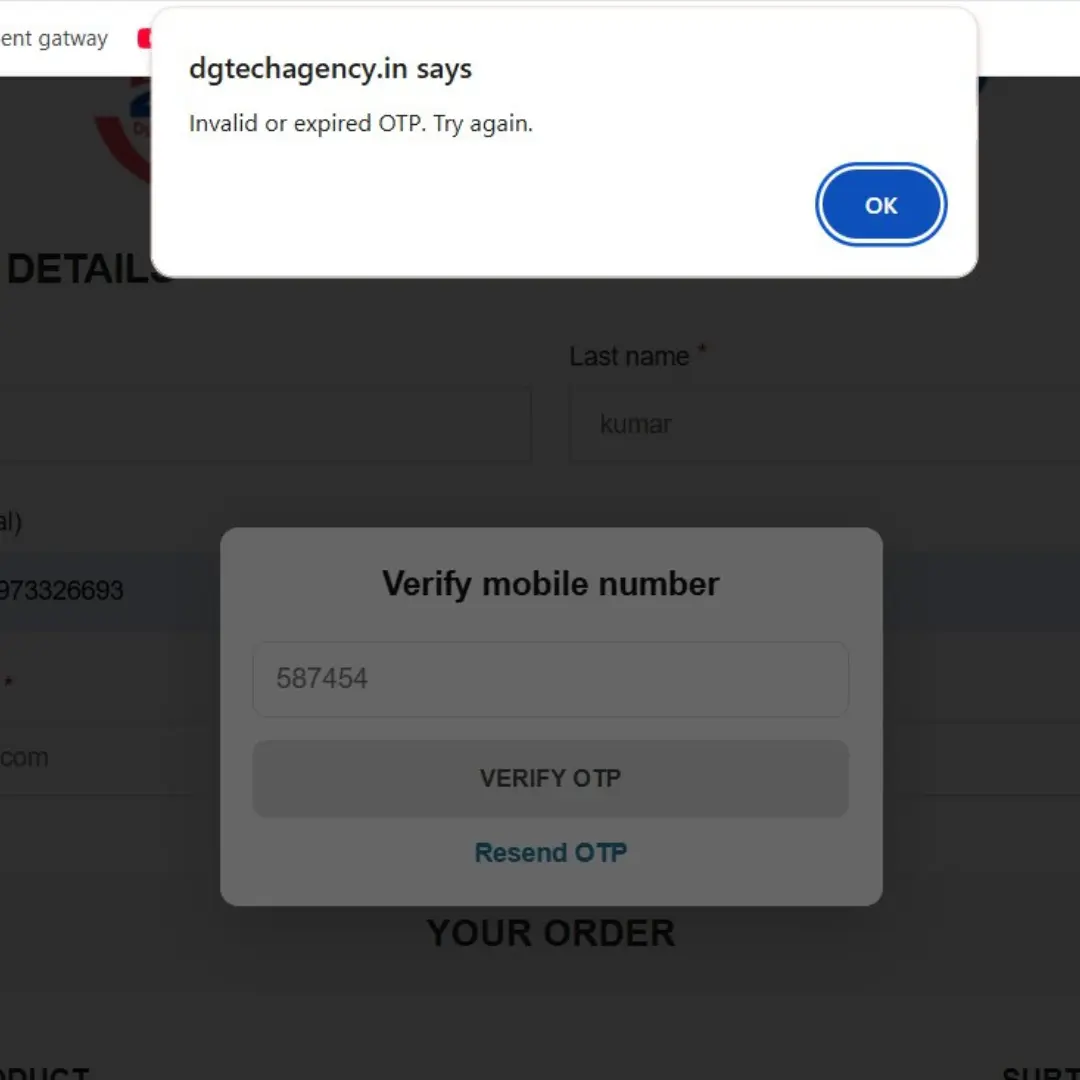
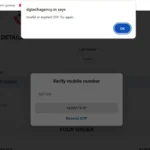
Enter OTP => Click Verify OTP.
-
On success:
-
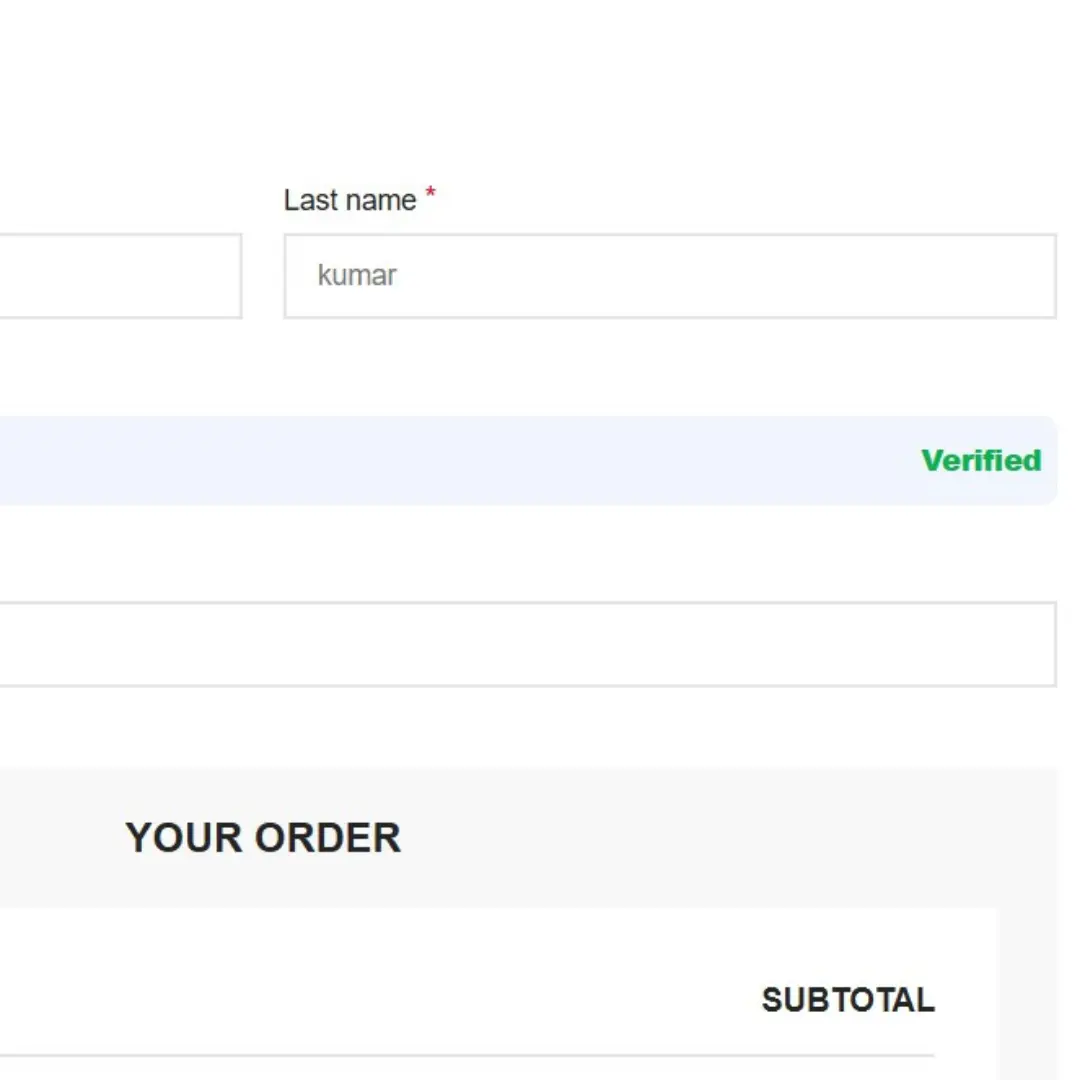
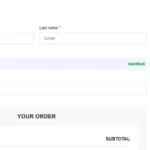
The billing phone field will be populated with normalized number, disabled, and show a “Verified” badge.
-
A server AJAX call will set session cookies (
dg_phone_verifiedanddg_verified_phone).
-
-
Submit order: checkout should succeed because server checks the session cookie.
-
After order processed, inspect order meta (order edit in WP admin) — you should see
verified_phonemeta saved with the phone number. Also, the plugin code attempts to find or create a WP user and attach order to them.
To test the mandatory re-verify behavior:
-
Close the browser or open a new private window and re-open checkout — you should be asked to verify again because the code clears verification on checkout load and cookies are session only.
Troubleshooting & common issues
-
“reCAPTCHA or domain error”: Ensure your site domain is listed in Firebase Authorized domains (Authentication settings). Use HTTPS for production. Add
localhostif testing locally. -
OTP not sent: Check browser console for Firebase errors. Ensure the firebase libs are loaded (the code enqueues Firebase v8).
-
AJAX not setting cookie / checkout still blocked: Make sure
admin-ajax.phpis reachable and the nonce in JS matches the one generated by PHP. If the AJAX response returns an error, inspect the network response in DevTools. -
Session cookie missing: Cookies set via
setcookie()inadmin-ajax.phpshould work; if your host strips cookies on ajax requests you may need to set cookie headers or use REST API route. Also confirm cookies are not blocked by browser settings. -
Phone formats: The code normalizes 10-digit Indian numbers to
+91.... For other countries, enter full international+<countrycode><number>. -
If you prefer persistent verification: The current design uses session cookies so verification is required each new browser session. If you want longer persistence, you can change
setcookie()expiry to a number of seconds (e.g.,time()+60*60*24*7for 7 days). Not recommended for strict per-checkout reverify requirement.
Security & production notes
-
Use HTTPS on production. reCAPTCHA and Firebase phone verification rely on secure origins.
-
Firebase API key in
firebaseConfigis public by design. Protect any server-side API keys you may use elsewhere. -
Consider rate limits: Firebase may limit SMS sends per phone number. Use test numbers during development.
-
If your storefront targets many countries, ensure SMS coverage and cost implications for Firebase in those countries.
-
If you need additional hardening, consider verifying the
confirmationResultby exchanging a token on the server — but Firebase’s client SDK handles the OTP flow and we ensure server only accepts verification after AJAX call from JS (protected by WordPress nonce). For highest security, implement server verification flows using Firebase Admin SDK (requires a server key) — this guide does not include Admin SDK.
Optional improvements you might want later
-
Replace Firebase v8 with v9 modular SDK (smaller builds).
-
Make popup texts translatable (use
wp_localize_script). -
Add “Change number” flow that allows user to unlock phone input and repeat verification.
-
Use REST API instead of admin-ajax for the verification endpoint.
-
Add a small visual toast when verified (instead of
alert()messages). -
Add logging of verification attempts to a custom table for analytics/fraud prevention.
Final checklist before you go live
-
Add production domain(s) to Firebase authorized domains.
-
Replace firebaseConfig in code with your Firebase Web App config.
-
Remove any Firebase test numbers or keep them for dev only.
-
Test on HTTPS production-like environment.
-
Backup site and install plugin/code on a staging environment first.
-
Monitor checkout for errors after launch (enable WP error logging & check server logs).
Related products



Amazon Affiliate Website II support multi affiliate product update 10/2025
- Amazon
- Flipkart
- Others..
- View pdf for website : Click website II Check pdf
- Website demo : Click website II Check pdf
- Last update : October 2025

ViserMart – Ecommerce Shopping Platform

WoodMart – Multipurpose WooCommerce Theme
- SEO-Friendly & Fast Loading
- Fully Responsive Design
- Elementor & WPBakery Compatible
- Powerful WooCommerce Integration
- 90+ Pre-Built Demos & Customization Options
Reviews
There are no reviews yet.